One USB Port to Rule Them All — And Why That's Destroying Your Stream
You did everything right. You upgraded your webcam. You added a second angle. Maybe you threw in a capture card, a USB audio interface, and one of those ring lights with the app-controlled color temperature. Your desk setup looks incredible. Your stream, though? Choppy. Inconsistent. Frame drops that show up out of nowhere and vanish just as mysteriously.
Here's the thing nobody in the streaming community talks about enough: USB is not a bottomless well. And the moment you start stacking peripherals onto a single controller, you're quietly building a traffic jam that no amount of CPU headroom or upload speed can fix.
What USB Bandwidth Actually Means (And Why It Matters)
Most people treat USB ports like electrical outlets — plug something in, it works, done. But USB doesn't operate that way. Every device on a shared controller is competing for the same pool of bandwidth. USB 3.0 tops out at around 5 Gbps theoretical throughput, which sounds enormous until you realize that number is shared across every device hanging off that controller simultaneously.
A single 1080p60 webcam is already pulling somewhere between 200–400 MB/s of raw, uncompressed data before your software even touches it. Add a second webcam running at the same resolution and frame rate, and you've potentially doubled that demand on the same pipe. Throw in a capture card ingesting HDMI footage from a console, and you've got three high-bandwidth devices all screaming for attention from the same controller.
The result isn't always an outright failure. It's subtler than that. You get micro-stutters. You get frame drops that don't correlate with CPU load. You get one camera that looks great while the other randomly drops to 30fps. These symptoms are maddening to diagnose because nothing in Task Manager or OBS's stats panel will point directly at USB saturation.
The Hub Problem Makes Everything Worse
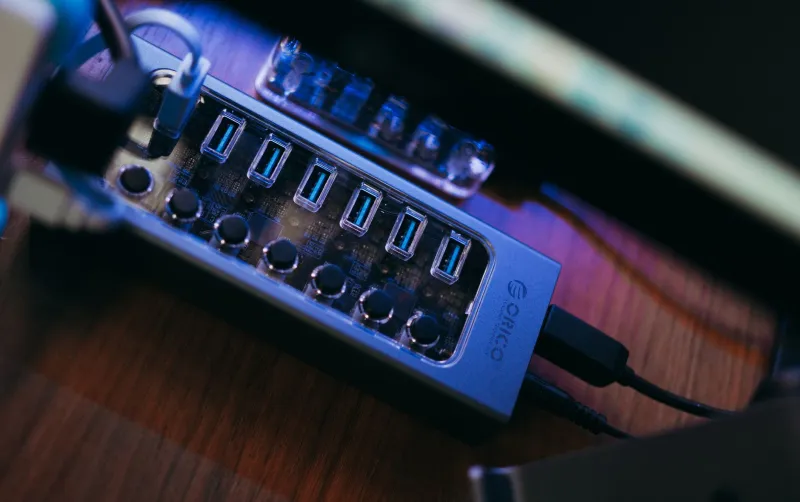
Powered USB hubs are genuinely useful — but they don't solve the bandwidth problem, they just make it easier to plug more devices into the same bottleneck. A hub splits one controller connection into multiple ports, meaning every device on that hub is still sharing the same upstream bandwidth budget.
This is where a lot of streamers get burned. They see four open ports on their hub and treat that as four independent connections. It's not. It's one connection, subdivided. Plug two webcams and a capture card into the same hub and you've created a congestion point that no firmware update or driver reinstall will ever fix.
The real fix involves understanding how your motherboard maps USB controllers. Most mid-range motherboards have two or three independent USB controllers, but they're not always labeled clearly. Some boards route all rear USB ports through a single controller while keeping a separate one for the front panel headers. Others split them differently. Your motherboard manual — yes, actually reading it — will show you the controller topology.
How to Audit Your Own USB Setup
Windows makes this easier than you'd expect. Open Device Manager, expand the "Universal Serial Bus controllers" section, and look for entries labeled "USB Root Hub" or "USB 3.0 eXtensible Host Controller." Each distinct controller entry represents a separate bandwidth pool. Devices sharing the same root hub are competing with each other.
From there, the goal is simple: spread your high-bandwidth devices across different controllers. Primary webcam on one controller. Capture card on another. Audio interface somewhere else entirely. If you're running out of physical ports, a PCIe USB expansion card is genuinely one of the highest-value upgrades a streamer can make — often under $40 — because it adds a completely independent controller with its own dedicated bandwidth.
Some streamers have also had success moving their secondary webcam to a different physical machine or using NDI over their local network to bring in additional camera angles without touching USB at all. It's a more complex setup, but for anyone running a multi-camera production, it's worth the configuration overhead.
Real-World Numbers That Might Surprise You
We ran some informal testing to put concrete numbers on this. With a single 1080p60 webcam on a controller by itself, frame delivery was rock solid — zero drops over a 30-minute test session in OBS. Adding a second identical webcam to the same controller introduced periodic frame drops on both cameras, averaging around 8–12 dropped frames per minute under moderate system load. Adding a capture card to that same controller pushed dropped frames on at least one device above 30 per minute, with visible stuttering in the preview window.
Moving the capture card to a separate controller eliminated the capture card stuttering entirely. Moving the second webcam to a third controller brought both cameras back to near-zero drops. Same hardware, same cables, same software — the only variable was which physical USB controller each device was connected to.
That's not a marginal improvement. That's a completely different streaming experience, and it cost nothing except ten minutes of cable shuffling.
The Stuff That Doesn't Help (But Feels Like It Should)
A lot of streamers chase this problem with solutions that don't address the actual cause. Reinstalling webcam drivers. Switching USB cables. Updating OBS. Lowering stream bitrate. None of these touch the underlying bandwidth contention, which is why they never fully solve the problem. You might get marginal improvements from lowering your webcam resolution — which reduces the raw data throughput demand — but you're trading image quality for a workaround when the real fix is a routing change.
Powered hubs with "individual power switches" are another popular purchase that doesn't help here. Power delivery and data bandwidth are separate issues. A hub that gives each device its own power switch still shares one upstream data connection.
Build With Bandwidth in Mind
If you're speccing out a new streaming rig or doing a serious desk rebuild, USB topology should be part of your planning conversation — right alongside GPU selection and RAM speed. Look for motherboards that explicitly advertise multiple independent USB controllers. Consider a PCIe expansion card a standard line item in your build budget, not an afterthought.
And before you buy that second webcam or third capture device, check where you're going to plug it in. Not just physically, but logically. Which controller will it land on? Is that controller already carrying significant load?
Your stream lives and dies on a hundred small decisions most viewers never see. USB bandwidth is one of the least glamorous of those decisions — and one of the most consequential. The good news is it's also one of the cheapest to fix once you know where to look.