The Late-Night Performance Drop Nobody Warns You About (It's Not Your Internet)
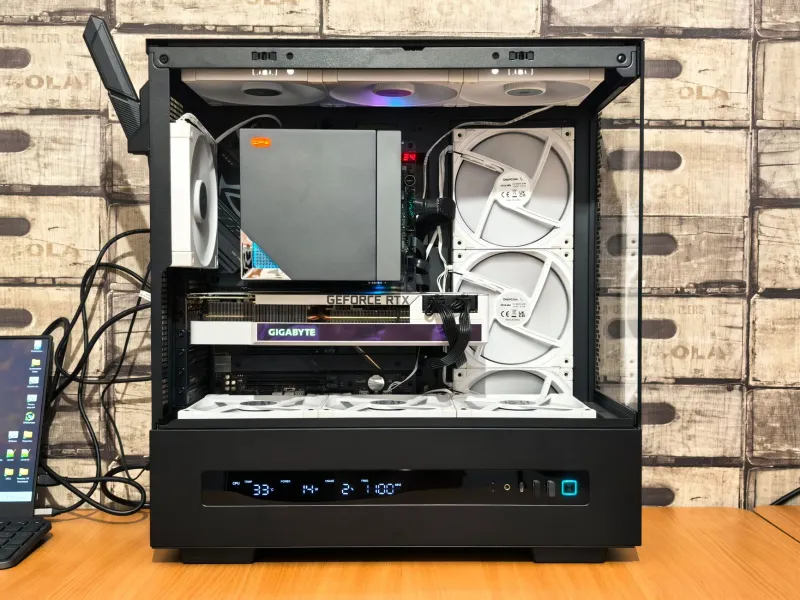
You've done everything right. You upgraded your encoder settings, you're running a wired connection, and your streaming software dashboard looks clean as a whistle. But somewhere around 10 or 11 PM, things start going sideways. Frames drop. Bitrate stutters. Viewers start posting question marks in chat.
You blame your ISP. You restart OBS. You reboot the router. Nothing sticks.
Here's a possibility most streamers never seriously consider: your desktop tower is thermally throttling, and it's doing it on a schedule tied to your environment — not your hardware specs.
What Thermal Throttling Actually Means (And Why It's Sneaky)
Thermal throttling is your CPU and GPU's built-in self-preservation mechanism. When either chip hits a temperature threshold — typically somewhere between 90°C and 105°C depending on the chip — it automatically dials back its clock speed to shed heat. The goal is to avoid permanent damage. The side effect is a sudden, invisible performance cliff.
The problem is that throttling doesn't announce itself with a warning screen. Your PC just... does less. Encoding gets slower, frame timing gets inconsistent, and your stream starts looking like it was compressed through a coffee straw. Your streaming software won't flag it. Your network stats won't show it. And unless you're actively watching a hardware monitoring overlay, you'll never know it happened.
Why Night Sessions Are the Worst-Case Scenario
Here's where the environment starts working against you in a very specific way.
During the day, your house or apartment has natural airflow happening — windows cracked, people moving around, HVAC running on a daytime cycle. By the time you're deep into a late-night session, a few things have quietly changed:
Room temperature creeps up. If you've been running your PC, monitors, and any other gear for several hours, your workspace is meaningfully warmer than it was when you started. Rooms with poor ventilation trap heat. A 5°F rise in ambient room temperature doesn't sound like much, but it directly impacts how effectively your case can exhaust hot air.
Your PC has been running hot for hours. Thermal paste does its job better when it hasn't been baking for four straight hours. Dust-clogged heatsinks that were marginal at the start of your session become genuinely problematic after sustained load. Heat soaks into the chassis and components over time — a phenomenon sometimes called "heat soak" — and it compounds.
Your HVAC is running less. In summer especially, overnight cooling cycles in American homes often reduce or pause entirely. That background air movement you took for granted during the day is gone.
The result is a PC that's running at the thermal edge of its comfort zone right when your viewership is highest and your broadcast matters most.
The Dust Variable People Underestimate
Let's talk about dust, because it's doing more damage than most builders acknowledge.
Dust accumulates on heatsink fins, fan blades, and intake filters in a way that compounds over months. A GPU cooler with even a moderate layer of dust can see temperatures run 10–15°C hotter than it would clean. That margin, which seemed totally fine when you built or cleaned the machine eight months ago, is now the exact margin that pushes you into throttle territory during a long session.
The seasonal angle matters here too. If you're in a region with dry winters or high-pollen springs — which covers most of the continental US in some form — dust accumulation rates change throughout the year. Streamers who built their rigs in fall and never cleaned them are often hitting their first serious thermal wall right around summer peak streaming season.
How to Actually Find Out If This Is Your Problem
Stop guessing. Start monitoring. Here are three tools worth having open during your next broadcast:
HWiNFO64 is the gold standard for granular sensor data on Windows machines. Run it in sensor-only mode and look at your CPU package temperature and GPU temperature over a full session. Log it. You want to see if temperatures are climbing continuously over time rather than stabilizing.
MSI Afterburner lets you overlay real-time GPU temperature, clock speed, and usage directly on your screen. If your GPU clock speed is noticeably lower at hour three than it was at hour one under the same load, you've found your problem.
Task Manager's Performance tab won't give you temperature data, but it will show CPU utilization and base vs. current clock speeds if you know where to look. A CPU that's supposed to boost to 5.0GHz running at 3.8GHz under full load is throttling — period.
Run a session, log the data, and look for the inflection point where temperatures started climbing and performance started dropping. That timestamp is your evidence.
Setup Tweaks That Actually Move the Needle
Once you've confirmed the problem, the fixes range from free to moderately cheap.
Clean your system. Compressed air, a soft brush, and 30 minutes will do more for your thermal headroom than any hardware upgrade. Pull your GPU cooler if you're comfortable doing it and clean the fins individually. Check your CPU cooler. Clear your intake and exhaust fans.
Improve case airflow. If your tower is shoved in a desk cubby or pressed against a wall, you're starving it of intake air and blocking exhaust. Even moving it six inches further from the wall can help. If your case has open bays or mesh panels, make sure you're not blocking them with cables or equipment.
Add a case fan or reposition existing ones. Most mid-tower cases have mounting points that go unused. A single $15 case fan positioned as an exhaust at the rear or top of the case can drop GPU temps by 5–8°C in a closed room.
Repaste your CPU. Thermal paste degrades over two to four years. If your machine is older and you've never replaced it, a $7 tube of decent thermal compound and an hour of your time can recover significant thermal headroom.
Control your room temperature. This sounds obvious, but pointing a small desk fan at your PC's intake side or running a portable AC unit in your streaming room during summer months is a legitimate fix. Your PC's cooling system is only as good as the air temperature it's working with.
Your Analytics Won't Save You Here
This is the part worth repeating: the dashboards and analytics tools built into streaming platforms are designed to catch network and encoder issues. They are not designed to diagnose hardware-level thermal behavior. A throttled CPU that's still technically encoding video won't trigger a dropped-stream alert. It'll just encode worse, and your stream quality will quietly suffer while every diagnostic metric shows green.
The only way to catch thermal throttling is to instrument your own hardware and watch it over the course of a full session. It takes maybe 20 minutes to set up monitoring tools the first time, and the data you get back is genuinely irreplaceable.
Your PC isn't failing. It's surviving. There's a difference — and knowing which one you're dealing with is the first step to actually fixing your late-night stream quality for good.