Your CPU Has Favorite Cores — And They're Not the Ones Running Your Stream
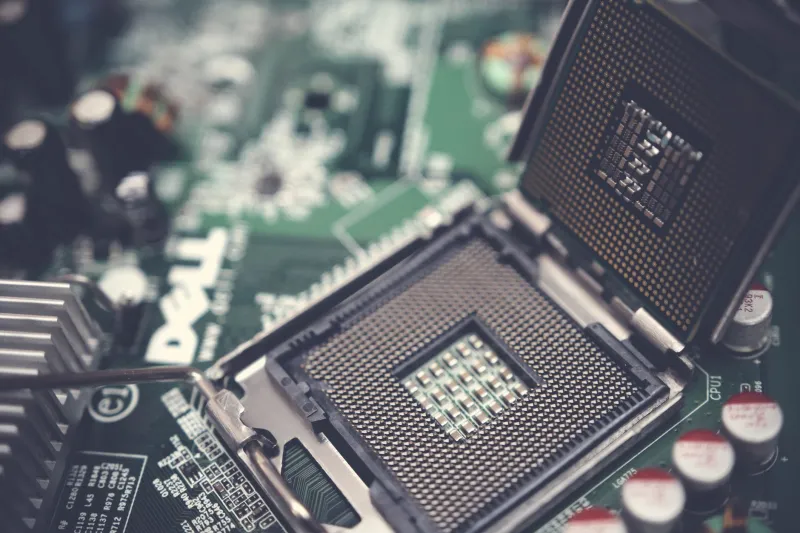
Here's a situation that probably sounds familiar: you've got a beefy processor — maybe a Ryzen 9 or a Core i9 — sitting in a rig that cost you serious money. Benchmarks look great. Games run smooth. But the moment you fire up OBS and go live, something goes sideways. Frames drop. Encoding stutters. Your viewers are watching a slideshow while your CPU usage meter barely moves past 40%.
The problem isn't your hardware. It's that your CPU is quietly making decisions you never agreed to — and those decisions are costing your stream.
How Your Processor Actually Divides the Work
Modern desktop CPUs don't treat all cores equally. Intel's hybrid architecture (used in 12th gen and newer) splits things up between Performance cores and Efficiency cores — P-cores and E-cores. AMD's 3D V-Cache chips have their own priority logic. Even on processors that look uniform on paper, your OS applies its own scheduling logic on top of that, constantly shuffling threads around based on thermal headroom, power limits, and load estimates.
Under normal desktop use, this is genuinely clever. Your browser tab that's been sitting idle for ten minutes? E-core territory. The game you just tabbed into? P-cores spin up fast. The system adapts, and most of the time you never notice.
Streaming breaks this model almost immediately.
When you're broadcasting, you're running two demanding workloads simultaneously: the game or content generating frames, and the encoder compressing and packaging that footage for the internet in real time. These two tasks need to coexist without stepping on each other. The problem is that your OS scheduler doesn't inherently understand that relationship. It sees a bunch of threads and starts distributing them based on its own logic — which often means your encoder ends up sharing core time with background processes, or worse, getting bounced between efficiency cores that weren't built for sustained heavy lifting.
The Scheduling Problem Nobody Talks About at the Point of Sale
Windows 11's Thread Director — the scheduling layer Intel built in collaboration with Microsoft — is designed to route workloads intelligently. And for most tasks, it does a decent job. But streaming software like OBS, Streamlabs, or XSplit isn't always recognized as a high-priority foreground task the way a game engine is.
What ends up happening is your game gets the priority treatment (because it's the active window and it's hammering the GPU), while your encoder gets treated like background work. Your CPU starts time-slicing encoder threads across whatever cores happen to be available, including efficiency cores that are great for light tasks but struggle to maintain consistent throughput under encoding loads.
The result: encoding latency spikes. Dropped frames. That weird stuttering your chat keeps complaining about even though your bitrate looks fine on your end.
Thread Affinity: Telling Your CPU Who's Actually in Charge
This is where thread affinity comes in, and it's one of the most underused tools in a streamer's toolkit.
Thread affinity lets you manually assign a process to specific CPU cores, overriding the OS scheduler's decisions. In plain terms: you can tell OBS to only run on your P-cores, and keep those cores reserved for encoding work regardless of what else is happening on your system.
On Windows, you can set this directly through Task Manager. Open it up, head to the Details tab, right-click on your streaming software's executable, and select "Set Affinity." You'll see a grid of logical processors. Uncheck the efficiency cores (typically the higher-numbered logical processors on Intel hybrid chips), leave the P-cores checked, and confirm.
For AMD systems without hybrid architecture, the approach is a little different. You're looking to isolate your encoder threads from the cores your game is hammering hardest. Tools like Process Lasso give you finer control here, letting you set persistent affinity rules that survive process restarts — so you don't have to redo this every time you launch a stream.
Process Priority: The Other Lever You're Not Pulling
Thread affinity tells your CPU where to run a process. Process priority tells it how important that process is relative to everything else fighting for resources.
By default, most applications run at Normal priority. Your streaming software is sitting in the same queue as your Discord client, your browser, whatever's syncing in the background. Bumping OBS to High priority — again, through Task Manager's Details tab — tells Windows to give it first access to available CPU cycles before lower-priority processes get their turn.
A word of caution here: don't set it to Realtime. That priority level can starve system processes and actually cause instability. High is the sweet spot for streaming software.
Some streamers also drop their game's CPU priority slightly — from Normal to Below Normal — to give the encoder more breathing room. This sounds counterintuitive, but if your game is GPU-bound anyway (which it usually is), you're not losing anything on the gameplay side while your encoder gets a cleaner run at the cores it needs.
OBS Has Built-In Controls You Might Be Ignoring
Before you even get to the OS level, check what OBS is already offering you. Under Settings > Advanced, there's a Process Priority dropdown. Set this to High or Above Normal. There's also an option for encoder thread count when you're using software encoding — x264 in particular lets you specify how many threads to use. Setting this manually (rather than leaving it on "auto") gives you predictable, consistent core usage instead of letting the encoder grab whatever's available at any given moment.
If you're on NVENC or AMD's AMF hardware encoding, thread affinity matters less for the encoder itself since that work is offloaded to your GPU — but your CPU is still handling the rest of the streaming pipeline, so the priority settings still apply.
Is This Worth Doing?
If your stream is already running perfectly, probably not. Don't fix what isn't broken.
But if you're dealing with unexplained frame drops, encoder overload warnings that don't match your CPU usage numbers, or inconsistent performance that seems to get worse the longer your stream runs — your scheduler is almost certainly part of the problem. These aren't glamorous fixes. You're not buying new hardware or upgrading your capture card. You're just telling your processor to stop making its own assumptions about what matters.
Your CPU is powerful. It's just not psychic. Sometimes you have to be the one to tell it what the job actually is.