Every Keystroke Is Ruining Your Stream (And You Have No Idea It's Happening)
You've dialed in your bitrate. You've got decent lighting. Your mic sounds clean in the test recording. But something still feels slightly off about your stream — a subtle shakiness, a faint mechanical rumble underneath your voice, a vague sense that the whole thing looks and sounds less polished than it should.
Here's the thing nobody tells you: your keyboard might be the culprit.
Not the sound of it, exactly — though that's part of it. We're talking about physical vibration. Every time you bottom out a keycap, slam a mouse click, or drag your mouse across a hard pad, that energy travels through your desk surface and into anything sitting on it. That includes your camera. That includes your microphone. And your viewers feel it, even if they can't name it.
The Physics Nobody Talks About
Desks are basically giant vibration amplifiers. A solid wood or MDF surface is rigid enough to transfer mechanical energy across its entire span almost instantly. When you type, the impact doesn't stay under your fingers — it radiates outward in every direction.
If your camera is sitting on a small desktop tripod or mounted on a monitor arm attached to the desk itself, it's receiving that energy directly. The result is micro-tremors in your video feed. We're not talking about the kind of shake you'd notice on a single frame. It's subtler than that — a slight softness in the image, an occasional micro-jitter that your viewers' brains register as instability without consciously identifying why.
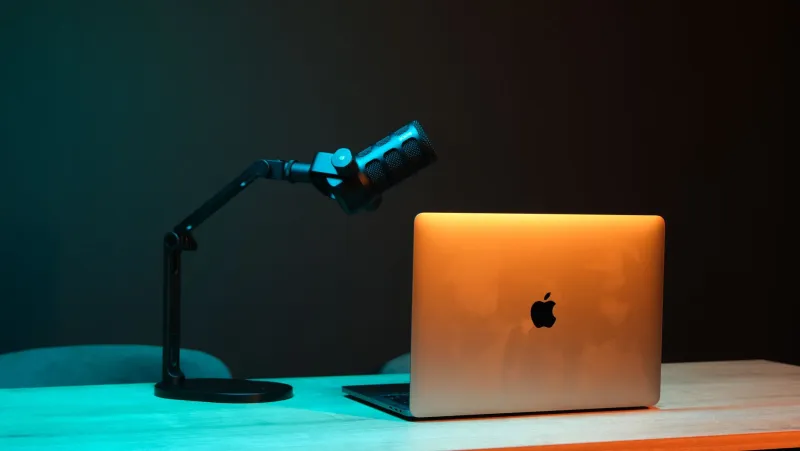
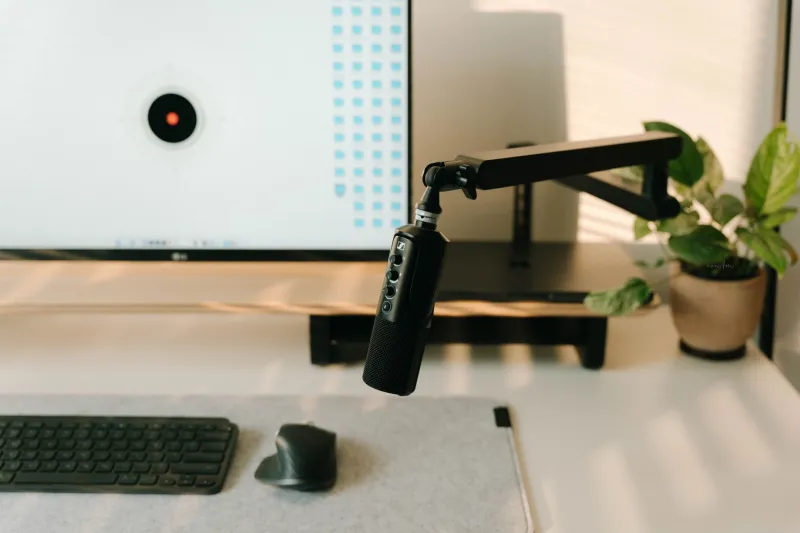
Microphones are even more sensitive to this. A condenser mic sitting on a desk stand will pick up low-frequency rumble from every keystroke. Even dynamic mics, which are generally more forgiving, will transmit desk vibration if they're making direct contact with the surface through a standard boom arm that clamps to the desk edge.
The result is a stream that sounds vaguely muddy or "busy" in a way that EQ alone won't fix — because the problem isn't in the signal chain. It's structural.
How Bad Is Your Setup Right Now?
Here's a quick test. Open a recording app, start capturing your camera feed and audio, then type a paragraph of normal text at your usual pace. Play it back and watch the footage closely. Then listen to the audio at higher volume than you normally would.
What you're looking for: any slight drift or tremble in the camera frame that corresponds with your typing rhythm. In the audio, listen for a low mechanical thud underneath your keystrokes — separate from the actual clack of the keys, more of a resonant thump that the mic is picking up through the desk.
If you catch either of those things, you've got a vibration problem. And it's been on every stream you've ever done.
The Gear Side of the Equation
Before you go rebuilding your entire setup, it's worth knowing that some equipment choices make this significantly worse.
Mechanical keyboards are the obvious villain here, and the switch type matters more than you'd think. Linear switches like Cherry MX Reds bottom out with a sharp, focused impact. Tactile switches like Browns add a bump that changes the vibration profile. Clicky switches are the loudest acoustically but don't necessarily produce the most desk vibration — that distinction often goes to heavier actuation switches that require more force and therefore more impact energy.
If you're on a mechanical board and you're not willing to switch to membrane or low-profile keys (no judgment — membrane typing is genuinely miserable for a lot of people), consider adding a desk mat that runs the full length of your keyboard and mouse area. A thick rubber-backed mat absorbs a meaningful amount of impact before it reaches the desk surface. It's not a complete fix, but it's the cheapest first step you can take.
Mouse clicks are underrated as a vibration source. If you're using a mouse with a firm, heavy click mechanism and you're clicking aggressively — which most of us do without realizing it — that impact is hitting the desk hundreds of times per hour. Same solution applies: a quality mouse pad with good surface padding helps, and so does consciously lightening your click pressure over time.
Isolating Your Camera
This is where the real gains live. Getting your camera off the desk entirely — or at minimum, breaking the rigid connection between it and the desk surface — makes an enormous difference.
A monitor arm-mounted camera might seem like it's elevated and therefore isolated, but if the arm clamps to the desk, it's still mechanically coupled to the same vibrating surface. You've just moved the camera up, not isolated it.
The better move is a freestanding floor-mount camera stand. A light stand or small tripod positioned behind or beside your desk and not touching it at all means your camera is completely isolated from whatever chaos you're generating on the desk surface. It's a bigger footprint, but for streams where visual stability matters, it's hard to argue with the results.
If a floor stand isn't practical in your space, look into camera mounts that include rubber vibration dampeners in the connection point. Some third-party monitor arm accessories include these, and even a simple rubber gasket between a camera mount and its surface can noticeably reduce transmitted vibration.
Isolating Your Microphone
Shock mounts exist for exactly this reason, and if you're running a microphone without one, you're leaving quality on the table.
A shock mount suspends the mic capsule inside a web of elastic bands or rubber supports, which absorbs vibration before it reaches the transducer. The difference in a before/after test is usually immediate and pretty striking. Pair that with a boom arm that has its own internal dampening — several mid-range options from brands like RØDE and Elgato include this — and you've largely solved the mic vibration problem.
One thing people overlook: even with a shock mount, if your boom arm is transmitting desk vibration through its clamp, you're still fighting the problem. Consider a heavy C-clamp with a rubber pad, or route the arm so it contacts the desk at a point that's farther from your keyboard — closer to the desk edge where there's less surface area to vibrate.
The Desk Itself
Not all desks vibrate equally. Thinner MDF surfaces with hollow cores are the worst offenders — they're basically resonance chambers. Solid wood and thick steel-framed desks are significantly better at absorbing and dissipating impact energy rather than transmitting it.
If you're in the market for a new desk anyway, this is worth factoring in. If you're not, rubber feet under your desk legs can reduce vibration that comes back up from the floor, and a large anti-fatigue mat or rubber underlayment beneath the desk helps too.
Small Fixes, Real Results
None of this requires a complete setup overhaul. Start with a full-coverage desk mat and a mic shock mount — you can address both for under $60 total, and the improvement in stream quality will be immediately visible and audible.
Work up from there based on what your test recordings reveal. Get your camera off the desk if you can. Evaluate your boom arm connection points. Think about your desk surface as part of your signal chain, because that's effectively what it is.
Your viewers may never know why your stream suddenly looks more stable and sounds cleaner. But they'll feel the difference — and that's exactly the point.