You're Streaming in H.264 Like It's 2012 — Here's What That's Actually Costing You
There's a setting buried somewhere in your streaming software that almost nobody changes. It probably says H.264. You probably left it there because it worked, or because a setup guide told you to, or because you genuinely had no idea there was another option worth considering. And honestly? That's a completely reasonable place to land — in 2015.
But we're not in 2015. Your hardware isn't from 2015. And the codec landscape has shifted enough that sticking with H.264 by default is no longer the safe, boring choice it used to be. Depending on your rig and your target platform, it might actually be the worst one.
Let's break down what's actually going on under the hood — and give you a real framework for figuring out which codec deserves a spot in your stream.
What a Codec Actually Does (Without the Textbook Answer)
A codec is basically a compression algorithm. It takes the raw video your system is generating — which is enormous, unworkable in real time — and squishes it down to something that can travel through your upload pipe and land in a viewer's browser without turning into a slideshow.
The key word there is efficiency. A more efficient codec can deliver the same visual quality at a lower bitrate, or better quality at the same bitrate. That matters a lot when most platforms cap you somewhere between 6,000 and 8,000 kbps and you're trying to stream a fast-moving game or a detailed desktop workspace.
H.264 (also called AVC) has been the dominant streaming codec for over a decade. It's universally supported, extremely well understood, and compatible with virtually every device your viewers might be using. Those are real advantages. But H.265 (HEVC) encodes video roughly 40–50% more efficiently — meaning you can get noticeably better image quality at the same bitrate, or maintain comparable quality while using less of your upload bandwidth.
That's not a marginal difference. That's the gap between your stream looking sharp and looking like someone smeared Vaseline on the lens.
So Why Isn't Everyone Using H.265?
Fair question. The short answer is compatibility and hardware requirements — both of which have changed significantly in the last few years, just not in the ways most setup guides have caught up to.
On the platform side, Twitch still doesn't support H.265 for ingest at the time of writing. That's a big deal for a huge chunk of the streaming community. If Twitch is your home, H.265 is effectively off the table for live streaming, and H.264 remains your practical reality. No shame in that — the limitation is on their end, not yours.
YouTube Live, however, does support HEVC ingest, and so does Kick. If you're streaming to either of those platforms — or running local recordings you'll upload later — H.265 becomes a genuinely compelling option.
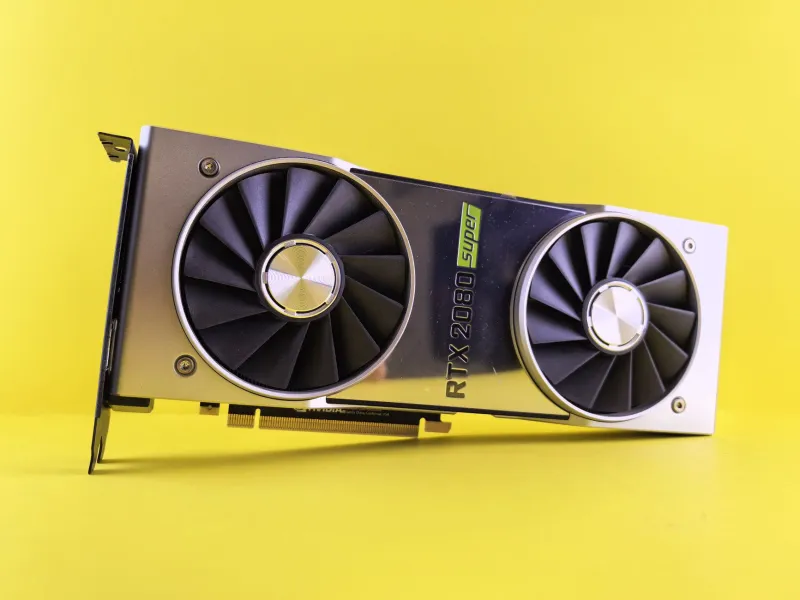
On the hardware side, the story has gotten a lot more interesting. Modern NVIDIA GPUs (Turing architecture and newer, so RTX 20-series and beyond) include dedicated NVENC encoders that handle H.265 with minimal performance overhead. AMD's VCE and Intel's Quick Sync have similar capabilities on recent generations. If you have a GPU from the last four or five years, there's a real chance you have H.265 hardware encoding sitting completely idle while your CPU grinds through H.264 software encoding.
The CPU Load Problem Nobody Mentions
Here's where it gets interesting for desktop streamers specifically. Software encoding — where your CPU handles the compression math — is generally considered higher quality, but it's also expensive in terms of system resources. If you're running OBS with x264 software encoding, you're asking your processor to manage your game, your operating system, your capture pipeline, and the entire encoding workload simultaneously.
Switch to hardware encoding via NVENC or AMD's equivalent, and you offload that work to a dedicated chip on your GPU that's specifically designed for this task and would otherwise be doing nothing during your stream. The quality ceiling is slightly lower than top-tier software encoding, but the real-world difference for most streamers at typical bitrates is minimal — and the CPU headroom you get back is significant.
Now add H.265 to that equation. NVENC H.265 on a modern RTX card encodes more efficiently than NVENC H.264, with comparable or lower GPU encoder load. You're getting better compression, freeing up CPU cycles, and potentially improving your image quality — all at once. That's not a theoretical win. That's a setup change you can feel.
A Practical Framework for Testing Your Own Setup
Rather than just swapping codecs and hoping for the best, here's a structured way to figure out what actually works for your specific hardware and platform:
Step 1: Confirm your platform supports it. Before anything else, check whether your target streaming platform accepts H.265 ingest. If you're on Twitch, stop here — stick with H.264 and focus your energy elsewhere. If you're on YouTube Live or Kick, keep going.
Step 2: Check your encoder options in OBS. Open OBS, go to Settings → Output, switch to Advanced output mode, and look at the Encoder dropdown. If you see options like NVIDIA NVENC H.265 or AMD HW H.265, your GPU supports hardware HEVC encoding. If you only see x264 or H.264 variants, your hardware may not support it or your drivers need updating.
Step 3: Run a split test. Set up two local recordings — same source material, same bitrate — one in H.264 and one in H.265. Use a fast-motion scene (gaming footage, scrolling through a browser, anything with movement). Play them back at 100% zoom and compare how the fine detail holds up, especially in areas of motion.
Step 4: Monitor your system load. Use Task Manager or a tool like HWiNFO64 to watch CPU and GPU encoder utilization during each recording pass. If H.265 gives you comparable or better visual quality with less CPU load, that's your answer.
Step 5: Do a live test stream before committing. Record a private or unlisted stream to your platform of choice and watch the playback on a few different devices — your phone, a tablet, a smart TV if you have one. Platform-side transcoding can affect how the final output looks, and there's no substitute for seeing the real thing.
The Takeaway for Your Desktop Setup
The codec conversation isn't about chasing the newest thing for its own sake. It's about understanding the tools you already have and making sure you're actually using them. A lot of streamers are leaving real quality on the table not because their hardware is weak, but because their software configuration hasn't kept pace with what that hardware can actually do.
If you're locked into Twitch, H.264 is still your codec — make peace with it and optimize within those constraints. But if you're streaming anywhere that accepts HEVC, and you've got a GPU from the last few years, there's a very good chance H.265 hardware encoding will give you a better-looking stream with less strain on your system.
The setting is already there. You just have to change it.