Silent Killer: How Heat Is Quietly Destroying Your Stream Quality Mid-Broadcast
You've done the homework. You've got a rig that benchmarks well, a solid encoder setup, and a bitrate that should be more than enough for clean 1080p60 output. The first 15 minutes of your stream are flawless. Then something shifts — frame drops, bitrate instability, maybe a weird stutter that comes and goes. Your viewers notice before you do.
Welcome to one of the most frustrating and least-discussed problems in desktop streaming: thermal throttling. It's not a software bug, it's not your ISP, and it's not your encoder settings. It's your hardware quietly choking on its own heat and pulling back performance to save itself — usually right in the middle of something your audience actually cares about.
What Thermal Throttling Actually Means (And Why Streamers Get Hit Harder)
Every modern GPU and CPU has a built-in thermal protection system. When temperatures hit a defined threshold — typically somewhere between 83°C and 95°C depending on the chip — the processor starts reducing its clock speed to bring temps down. It's a safety mechanism, and it works exactly as designed. The problem is that "working as designed" still means your performance just fell off a cliff.
For gaming alone, this might mean a few dropped frames in a demanding scene. Annoying, but survivable. For streaming, the consequences compound. You're not just running a game — you're simultaneously encoding video in real time, managing audio, running OBS or Streamlabs, and potentially handling capture card output. The combined load is sustained and consistent in a way that gaming alone rarely is. Your hardware runs hotter for longer, and thermal throttling becomes not an occasional spike but a recurring performance floor that your stream keeps slamming into.
The extra cruel part? The throttle often doesn't show up in your in-game performance overlay. Your game might be running at a stable 120fps while your encoder is starving for resources, producing a stream that looks like it was recorded through a potato.
The Monitoring Stack You Should Already Be Running
If you're streaming without real-time hardware monitoring visible somewhere on your secondary display, you're flying blind. The good news is that the tools you need are either free or already installed on your machine.
HWiNFO64 is the gold standard for granular hardware monitoring on Windows. It surfaces per-core temperatures, GPU junction temps (not just the average edge temperature that other tools report), VRAM temperature, and — critically — it flags when throttling is actively occurring. Run it in sensor-only mode with a second monitor or a small floating overlay, and you'll see exactly what your hardware is doing in real time.
MSI Afterburner with the RivaTuner overlay is the other half of this stack. It gives you on-screen GPU and CPU utilization, clock speeds, and temperatures in a customizable overlay that sits over your game. When you see your GPU clock speed drop by 200-400MHz mid-session while your temp is pegged at 90°C+, that's your throttle in action.
OBS's built-in stats panel — accessible under View > Stats — shows you encoder performance directly: dropped frames, render lag, and encoding lag. If you're seeing encoding lag spike at the same time your GPU temp climbs, you've confirmed the connection.
Set up all three before your next stream. Watch them for the first 30 minutes. You'll either feel relieved or you'll find your culprit.
The Airflow Problem Nobody Talks About
Most streamers who deal with thermal throttling assume the fix is a better cooler or more thermal paste. Sometimes that's true. More often, the real problem is case airflow — and it's completely fixable without spending much.
The physics here are straightforward: your cooler can only dissipate heat as fast as it can move hot air out of the case. If your case is full of hot air with nowhere to go, even a premium cooler is working against itself. Common airflow failures in streaming rigs:
Positive vs. negative pressure imbalance. More intake than exhaust creates positive pressure — dust gets filtered, temperatures stay manageable. More exhaust than intake creates negative pressure — air gets pulled in through every gap and slot in the case, bypassing filters and creating turbulence that reduces cooling efficiency. Count your fans and check which direction they're moving air.
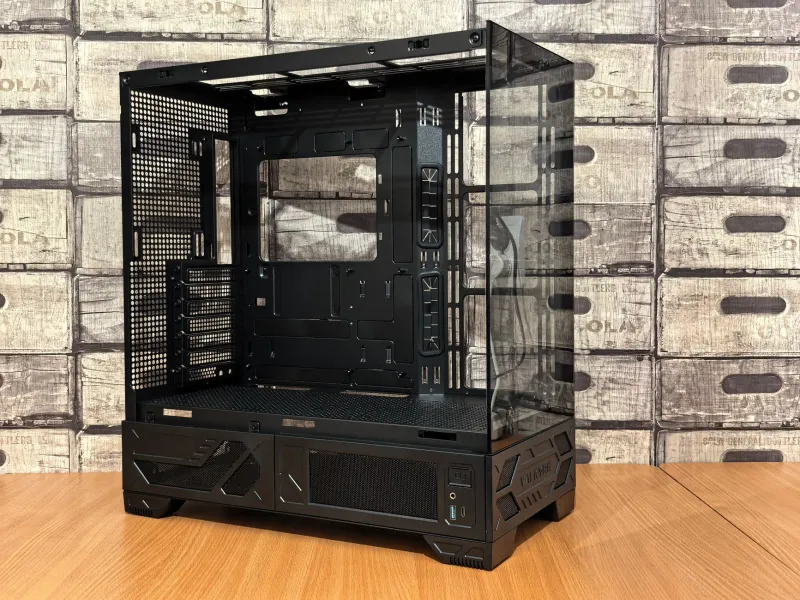
Cable obstruction. That bundle of power cables running through the middle of your case is blocking airflow more than you think. Even if your cable management looks clean from the glass panel, the path air needs to travel from intake to exhaust should be as clear as possible. Re-route or re-bundle anything sitting in the direct path between your front intakes and rear/top exhaust.
Dead zones around the GPU. Modern triple-fan GPUs are long. If the front of your GPU is 2-3 inches from the front intake fans but the rear of the card is sitting in stagnant air, you're getting uneven cooling. Additional case fans positioned to move air across the full length of the card can make a meaningful difference, especially on longer streaming sessions.
Thermal Thresholds: The Numbers That Actually Matter
Not all high temperatures are throttle triggers. Here's a rough map of where things get concerning for a typical streaming workload:
- CPU temps above 90°C sustained — Most modern Intel and AMD desktop chips will throttle here. Under 80°C during a stream is a good target.
- GPU core above 85°C — Many cards start thermal management behavior (clock speed adjustments) here. Above 90°C is where you'll see hard throttling on most Nvidia and AMD desktop GPUs.
- VRAM above 100°C — This one catches people off guard. GDDR6X memory, common on higher-end Nvidia cards, runs hot by design, but sustained temps above 105°C can cause stability issues during long streams. HWiNFO64 surfaces this; most other tools don't.
- Motherboard VRM temps above 90°C — Relevant mostly for heavily overclocked or power-hungry builds. High VRM temps cause CPU power delivery instability that can look a lot like thermal throttling but is harder to diagnose.
Quick Fixes That Actually Work Before You Buy Anything
Before you order a new cooler, try these in order:
-
Clean your case. Compressed air, every fan, every heatsink fin. Dust buildup is responsible for more thermal throttling than any hardware deficiency. Do this every three to four months if you're streaming regularly.
-
Reapply thermal paste on your CPU. If your build is more than two or three years old, the original thermal compound has likely dried out and lost effectiveness. A $10 tube of decent paste (Thermal Grizzly Kryonaut is a reliable choice) and 20 minutes of your time can drop CPU temps by 5-10°C.
-
Adjust your GPU fan curve. Most GPUs run a passive or near-silent fan curve by default — fans don't spin up aggressively until temps are already high. MSI Afterburner lets you set a custom fan curve that gets ahead of the heat rather than reacting to it. Slightly louder, but your stream won't stutter.
-
Raise your GPU power limit in Afterburner. Counterintuitively, if your GPU is hitting its power limit before its thermal limit, raising the power limit (usually up to +20%) can actually reduce thermal throttling by letting the card boost more consistently rather than hunting between clock states.
The Bottom Line
Thermal throttling is a slow, quiet broadcast killer. It doesn't announce itself with a crash or an error message — it just chips away at your stream quality while you're focused on your content, leaving your viewers wondering why things look worse than they did 20 minutes ago.
The fix starts with visibility. Get your monitoring stack running, watch what your hardware is actually doing under sustained streaming load, and then work through the airflow and thermal maintenance checklist before spending anything on new hardware. Most of the time, the problem is dust, airflow, or a degraded thermal interface — not a cooler that needs replacing or a GPU that needs upgrading. Your rig is probably capable of delivering a clean stream. It just needs to be able to breathe.