Your GPU Is Loafing While Your CPU Burns: The Streaming Mismatch Most Builders Never Catch
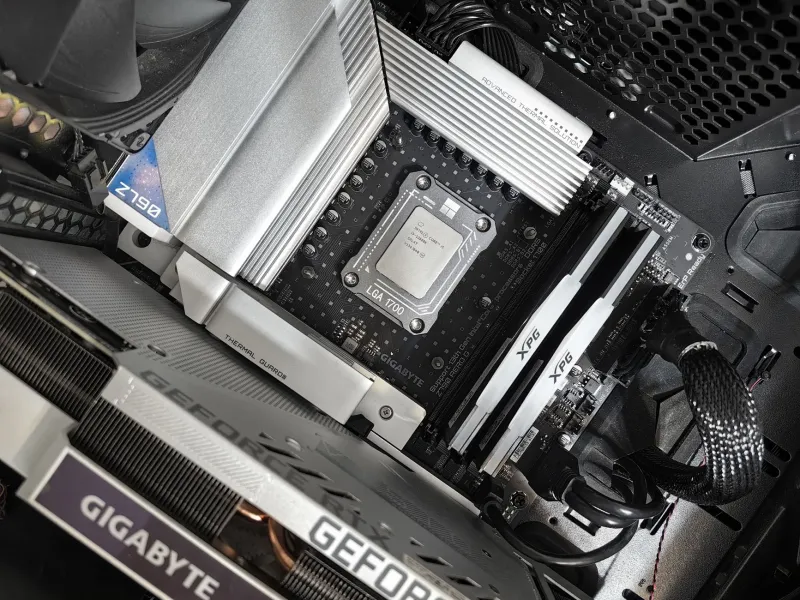
Open up Task Manager during your next stream. Seriously, do it right now. If you're like the majority of desktop streamers, you'll see something that looks completely backwards: your CPU pinned near its ceiling, your GPU sitting somewhere between 40 and 60 percent utilization, and a stream that somehow still manages to drop frames. You spent good money on that graphics card. So why is it basically on vacation while your processor has a meltdown?
This is one of the most common — and least-discussed — performance traps in streaming setups. And the frustrating part is that most people solve it by buying more hardware when the real fix is just understanding how the software is dividing the work.
What's Actually Doing the Streaming Heavy Lifting
Here's the thing most build guides skip over: gaming and streaming are two completely different workloads, and your components handle them separately. Your GPU is busy rendering the game — drawing frames, handling shaders, doing all the visual math that makes your game look good. That's its job, and it's usually doing it just fine.
The streaming part, though? That's encoding. And encoding is the process of compressing that raw video output into something that can actually travel over the internet to Twitch, YouTube, or wherever you're broadcasting. Encoding is intense, and where that work lands depends almost entirely on which encoder you've told your streaming software to use.
If you're running OBS — which most streamers are — you've got a setting buried in your Output options that makes a massive difference: the encoder selection. The two main choices are x264 (software encoding) and NVENC, AMF, or QuickSync (hardware encoding). That one dropdown is probably the biggest single factor in why your CPU is either fine or completely fried.
x264: The CPU Killer That Still Has a Place
x264 is a software encoder, meaning it runs entirely on your CPU. It's been around forever, it produces excellent quality at lower bitrates, and it's the default for a lot of streamers who never thought to change it. It's also the reason your processor is running hot enough to cook breakfast.
On a budget rig — think a Ryzen 5 5600 or an older Core i5 — x264 at anything above the "very fast" preset will eat your CPU alive, especially if you're gaming at the same time. The encoder is competing directly with the game for processor resources, and something has to give. Usually it's your stream. You get dropped frames, stuttering, and that awful blocky compression that makes your stream look like a mosaic.
Here's where it gets interesting, though: x264 at lower presets like "ultrafast" or "superfast" is actually pretty lightweight. Quality takes a hit, but if you're on a tight CPU budget and you're streaming at 720p60, it can work. The problem is most people leave it on "veryfast" or "faster" without realizing they're burning through CPU headroom they don't have.
NVENC and the GPU That's Just Sitting There
NVIDIA's NVENC encoder — and AMD's equivalent, AMF — offloads the entire encoding job onto dedicated hardware built into the GPU. This is the part that changes everything. Suddenly your CPU is free to run the game, your GPU's encoder chip handles the stream, and everyone's happy.
The catch? NVENC quality used to be noticeably worse than x264 at the same bitrate. Early implementations produced softer images and more compression artifacts. But that was several GPU generations ago. Modern NVENC — anything from the RTX 2000 series onward — produces output that's genuinely competitive with x264 at medium presets. For most Twitch and YouTube streams where you're capped at 6,000 kbps anyway, the average viewer isn't going to spot the difference.
If you've got an NVIDIA card in your rig and you're still running x264, you're essentially leaving a perfectly good encoder sitting idle while your CPU suffers. Switch to NVENC in OBS under Settings > Output > Encoder, and you'll likely see immediate results. CPU usage drops, frame times smooth out, and your GPU finally has something useful to do with that dedicated silicon.
The Budget Rig Problem Nobody Warns You About
Here's where things get tricky for builders working with tighter budgets. Lower-end GPUs — your GTX 1650s, your RX 6500 XTs — either have weaker NVENC implementations or, in AMD's case with some budget cards, limited encoding support altogether. The RX 6500 XT famously shipped with no hardware video encoding capability at all, which is a brutal oversight for anyone who bought it thinking it'd handle a dual-purpose gaming and streaming setup.
If you're in that situation, you're stuck with CPU encoding, which means your processor choice matters enormously. A Ryzen 7 5700X or a Core i7-12700 gives you enough headroom to run x264 at a reasonable preset alongside most games. A Ryzen 5 3600? You're going to be fighting for resources constantly.
The honest advice for budget builders: prioritize CPU cores and threads if you know you're going to be streaming without solid hardware encoder support. More cores means more headroom for x264 without tanking your game performance.
Software Settings That Make or Break Everything
Beyond the encoder choice, there are a few other OBS settings that quietly contribute to the CPU load problem.
Resolution scaling is a big one. If you're gaming at 1440p and streaming at 1080p, OBS has to downscale that footage in real time. The scaling filter you choose — Bilinear, Bicubic, or Lanczos — affects both quality and CPU cost. Lanczos looks great but is heavier. Bilinear is cheap but soft. For most setups, Bicubic is a solid middle ground.
Scene complexity also matters more than people expect. Every source in your OBS scene — browser sources, game capture, overlays — adds processing overhead. Streamers who've built elaborate setups with animated alerts, multiple browser sources, and layered overlays sometimes wonder why their CPU is struggling even with NVENC enabled. Audit your scene setup. Browser sources in particular are surprisingly expensive.
Frame rate targets are worth reconsidering too. Streaming at 60fps is twice the encoding work of 30fps, which sounds obvious but doesn't always feel real until you're watching your CPU graph spike. If you're on a budget rig and struggling, dropping to 60fps in-game with a 30fps stream output is a completely valid trade-off that most viewers won't even notice.
The Fix Is Usually Free
The good news in all of this is that the most impactful changes cost nothing. Switching encoders, adjusting presets, cleaning up your scene list, tweaking your output resolution — none of that requires buying new hardware. Before you drop money on a CPU upgrade or a capture card, spend twenty minutes in your OBS settings and actually benchmark the difference.
Your GPU has more to offer than you think. You just have to give it the chance to help.